1Install
From payment to the indicator on your chart takes about two minutes.
MSNR Pro for MetaTrader 5 is sold and installed through the MQL5 Market.
- Pay in TelegramPick a plan on the pricing section and pay by card inside Telegram. To pay in crypto, message the manager.
- Join the private groupRight after payment your Telegram account is added to the private MSNR Pro group with the instructions and the access bot.
- Send your TradingView username to the botStart the bot and send the username exactly as it is on your TradingView profile. Access is granted in 2–3 seconds.
- Add it to the chartIn TradingView open Indicators → Invite-only scripts → MSNR Pro. Click the star next to it to keep it in your favourites.
- Buy or rent on MQL5Open MSnR Pro Setups and Storyline and buy or rent it with your MQL5 account. Want to try first? Download the free demo and run it in the Strategy Tester.
- Sign in inside the terminalIn MetaTrader 5 open the Market tab and sign in with the same MQL5 account.
- InstallGo to Market → Purchased and click Install next to MSNR Pro.
- Drag it onto a chartOpen Navigator → Indicators → Market → MSNR Pro and drag it onto any chart. The settings open in the Inputs tab.
MSNR Pro works on a free TradingView account. Don't see it under Invite-only scripts? Check the username you sent, then reload the TradingView page.
MetaTrader 5 builds levels from your broker's history. If daily candles look different from TradingView, set Candle time shift so the day closes at the same time.
2MSNR in 5 minutes
Malaysian SNR uses candle bodies, not wicks. Six ideas explain every line MSNR Pro draws.
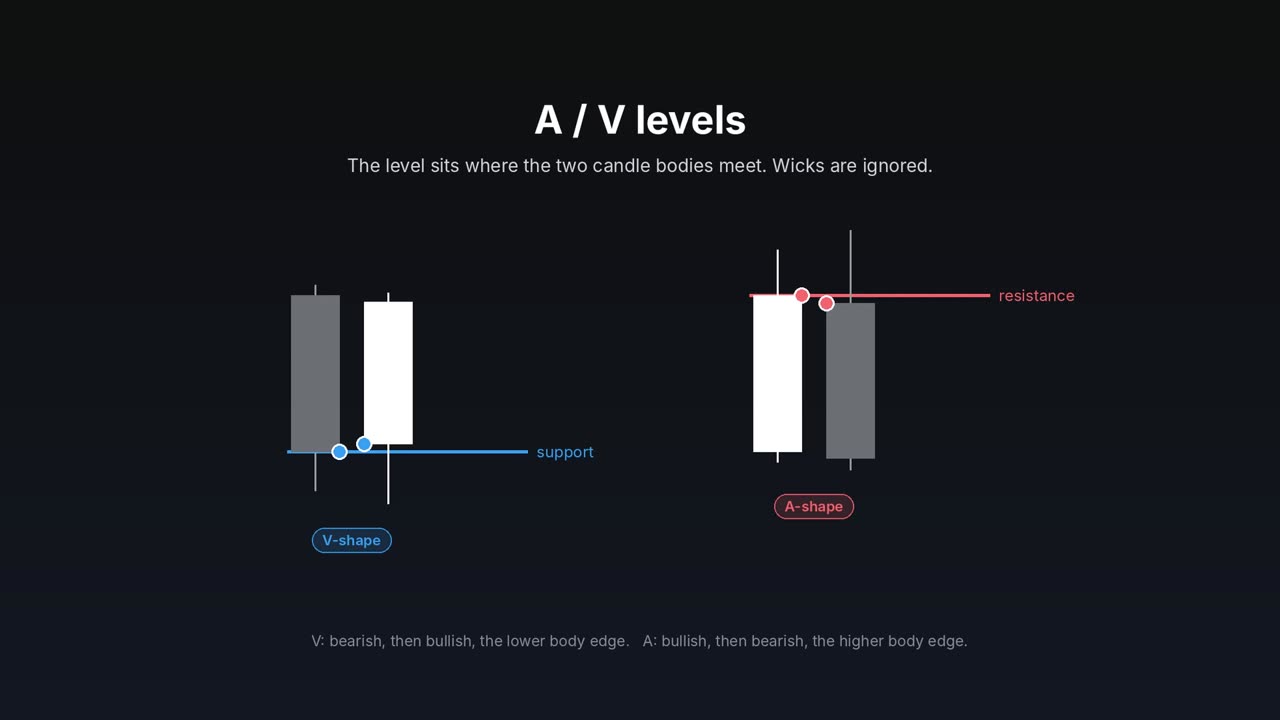
A: a bullish candle, then a bearish one. The higher body edge is resistance. V: bearish, then bullish. The lower body edge is support.
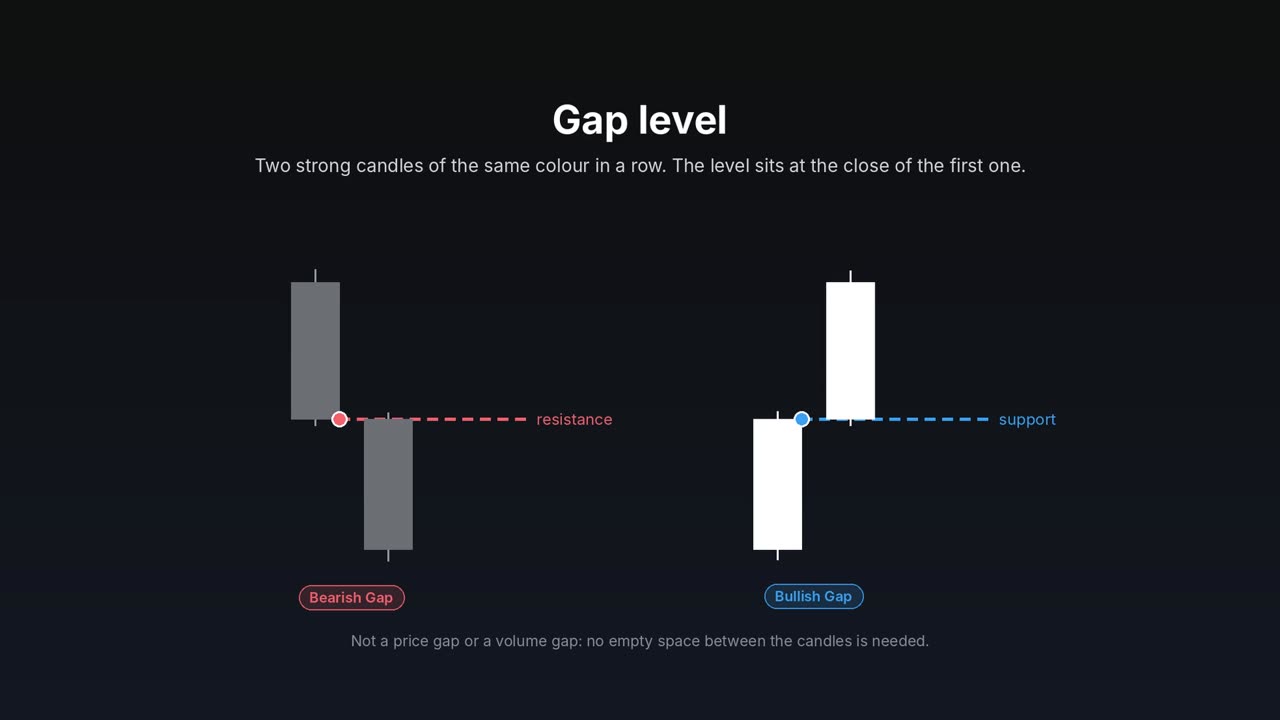
Two strong candles of the same colour in a row. The level sits at the close of the first one and is drawn dashed.
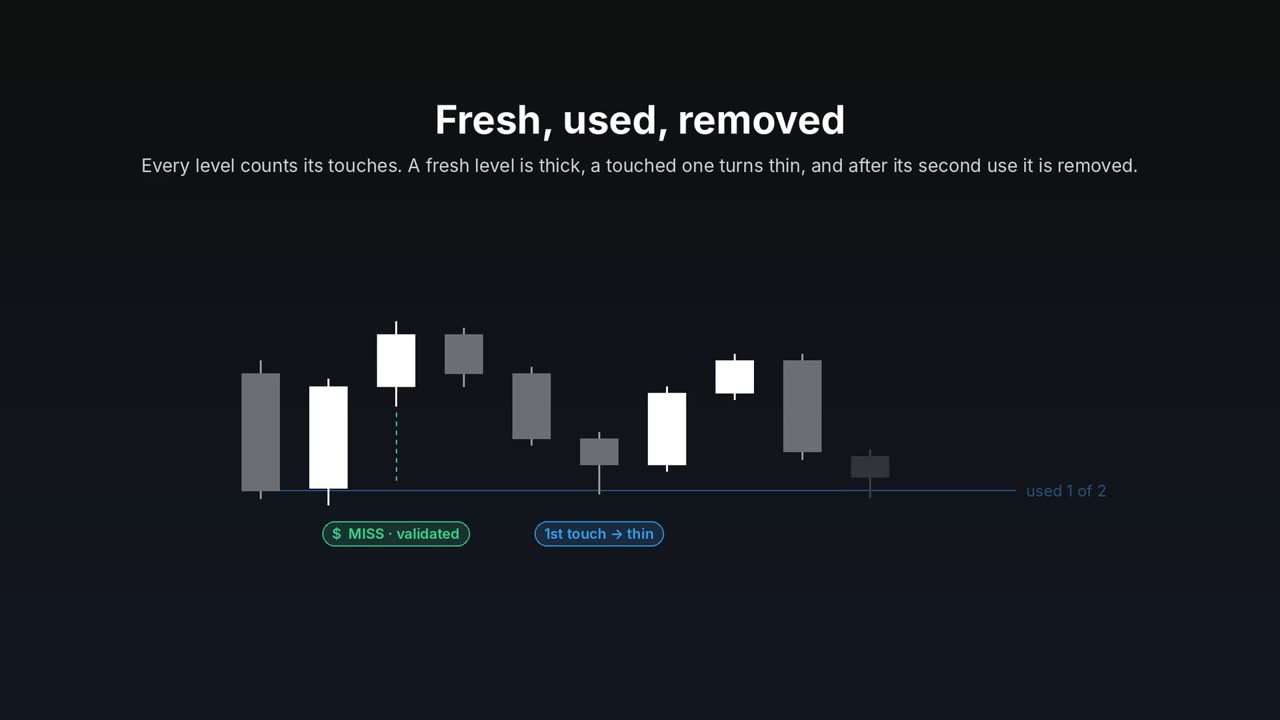
Fresh: no wick has touched it yet, the strongest. After a touch it is unfresh. After the last allowed use (2 by default) it is removed.
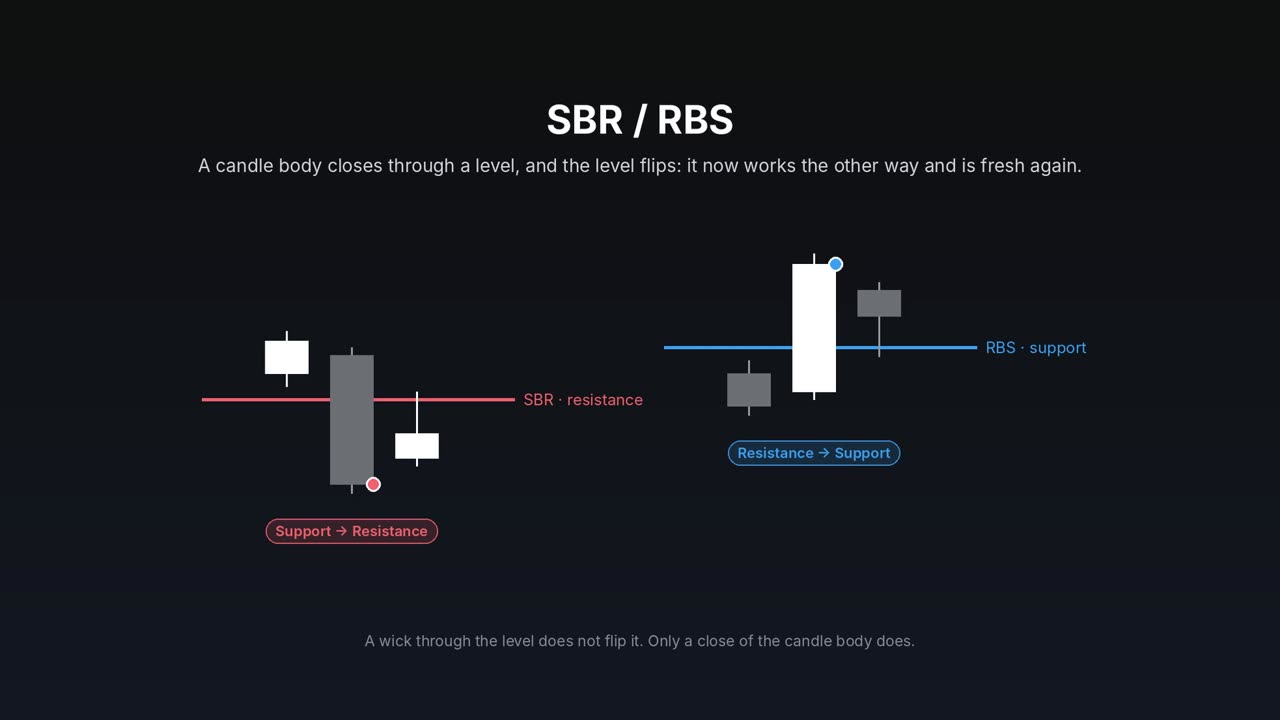
A body close through a level does not kill it. It flips: support becomes resistance (SBR), resistance becomes support (RBS), fresh again.
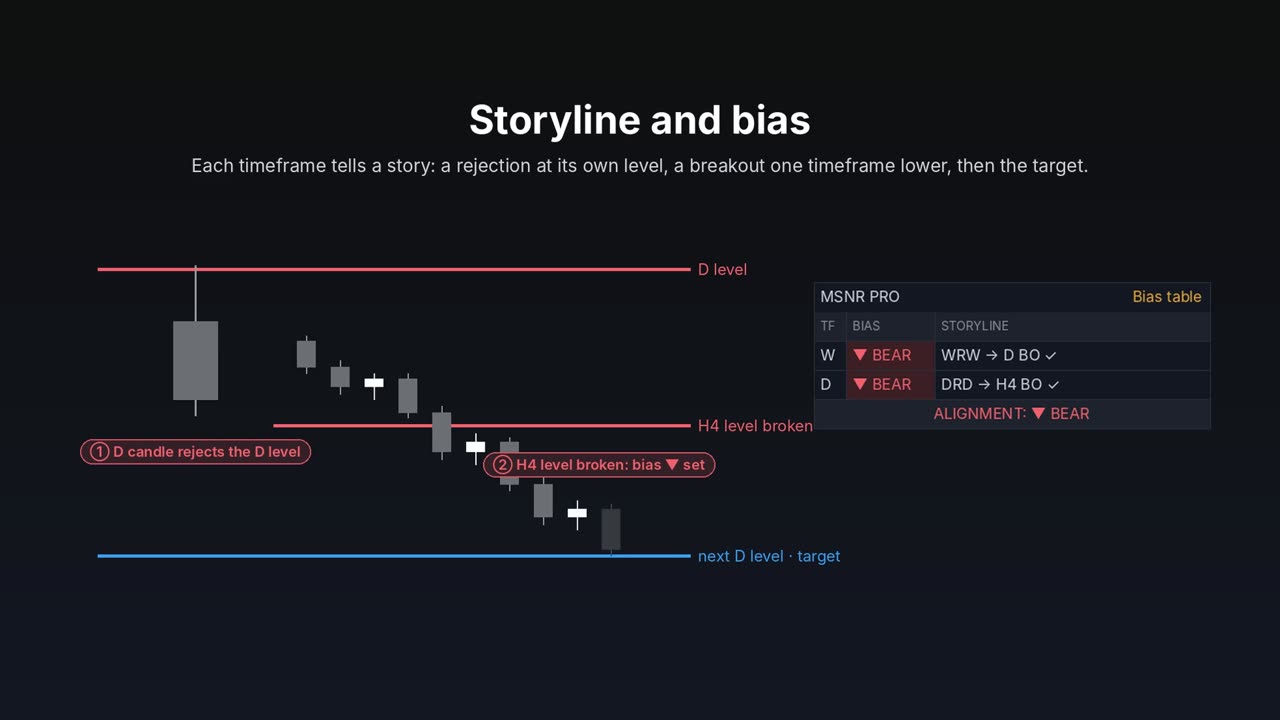
A candle of a timeframe taps its own level and closes back (DRD, WRW, MRM). A breakout one or two timeframes lower confirms it. The target is the next level of that timeframe.
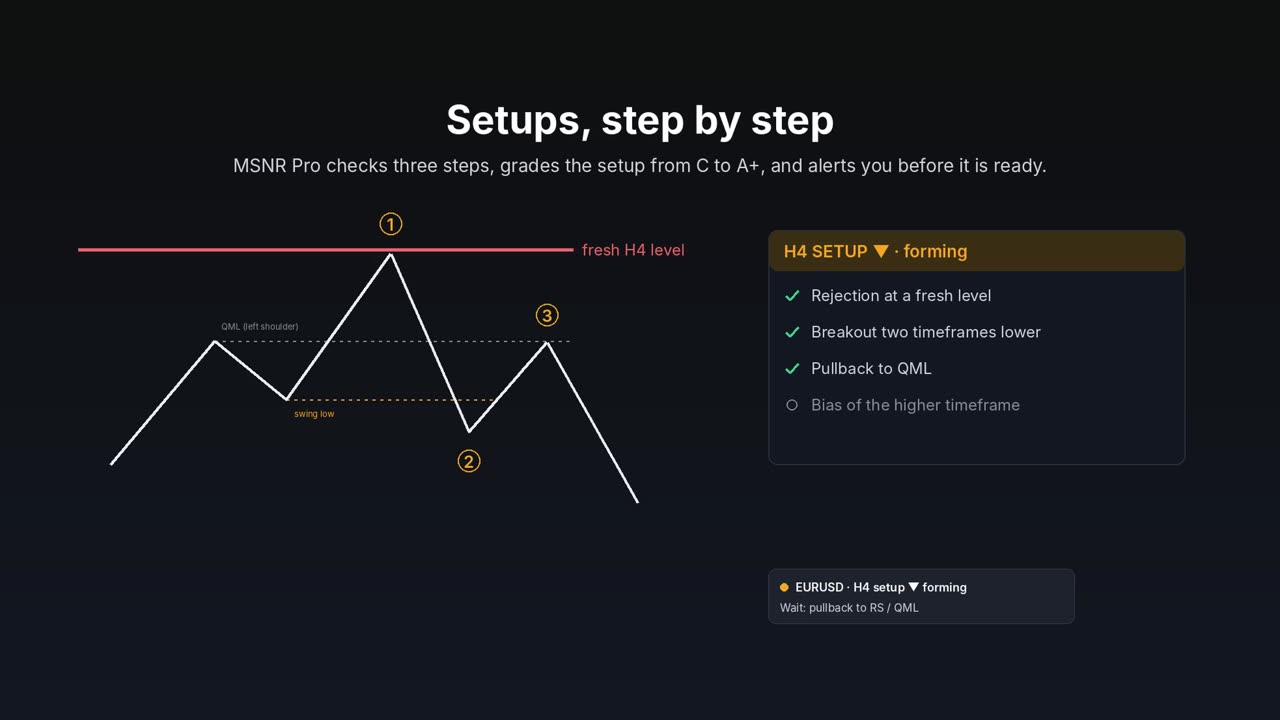
Rejection of a level, a breakout two timeframes lower, a pullback to the right shoulder or QML. MSNR Pro grades each one from C to A+.
Two more words you will see
MISS ($): the candle right after the level was made did not reach it with its wick. The level is validated. D·H4: two levels closer than 0.05% become one, the timeframes add up and the line gets thicker.
3Reading the chart
Every line tells you its timeframe, its type and how much of it is left.
Red is resistance, blue is support. You can pick your own colours under 6 · Look.
Thick line: a fresh level, no touch yet.
Thin, pale line: used once. One more use and it is gone.
Dashed line: a gap level.
The label: timeframe and type. D·H4 V means two timeframes agree, SBR H4 means a flipped level. Hover a line for the details: uses left, MISS, roadblock.
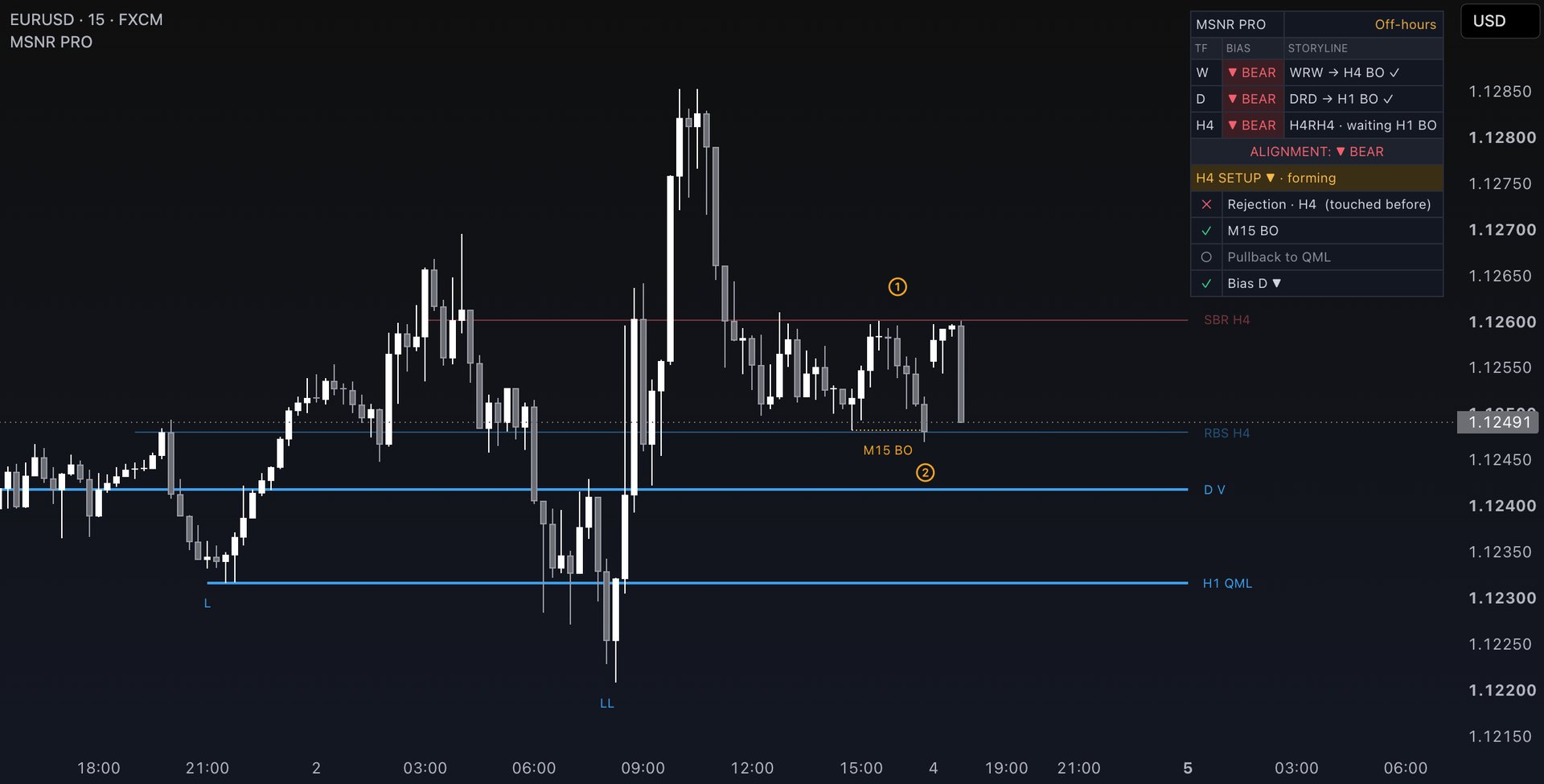
Numbers ① ② ③: the steps of a setup. Orange while it is forming, green when it is done, with the grade in a tag next to ③.
4The table
The whole picture in one place: where you are in the day, the bias of every timeframe and the setup checklist.
| Row | What it tells you |
|---|---|
| Header | The current session in New York time: Asia, London KZ, London, NY AM KZ, NY AM, NY Lunch, NY PM or Off-hours. KZ is a killzone. |
| W · D · H4 | Bias: ▲ BULL or ▼ BEAR from the timeframe's storyline. Storyline: for example DRD → H1 BO ✓ (confirmed) or waiting H1 BO (rejection seen, breakout still needed). |
| Alignment | ▲ BULL or ▼ BEAR when every timeframe in the table agrees, MIXED when they don't. Aligned bias is the cleanest context. |
| Setup | The setup timeframe, its direction and the state: forming or the grade with ✓. |
| Checklist | The four checks behind the grade: ✓ done, ✕ failed, ○ still waiting. |
Choose which timeframes get a row (M, W, D, H4) and where the table sits under 3 · Table. The rows don't depend on the levels you draw.
5Setups and grades
A setup is three steps on the chart. MSNR Pro checks each one on closed candles.
- RejectionPrice taps a level of the setup timeframe with a wick, and the candle one timeframe lower closes back. This is the head of the model.
- Breakout (BO)A candle two timeframes lower closes beyond the last swing before the head. From here the setup shows as forming.
- PullbackPrice comes back to the right shoulder (RS) or the QML, and a candle closes away again. The setup is done ✓.
Which setups you see
| Your chart | Setup timeframe (Auto) |
|---|---|
| M1 – M15 | H4 setups |
| M30 – H1 | D setups |
| H4 | W setups |
The grade: four checks
Breakout done · the level was fresh · price reached the QML (not only the RS) · the bias one timeframe higher agrees.
By default you see grades from B. Show from grade filters the chart, the table and the alerts together.
When a setup is dropped
A forming setup is cancelled if price runs half a day's range away without a pullback, a step waits longer than 48 hours, or price closes beyond the head. A finished setup runs until price reaches the next level of the setup timeframe against it or closes beyond the head.
6Alerts
One TradingView alert covers everything. The boxes in the settings decide what it sends.
MetaTrader 5 sends alerts as a popup, a push notification to your phone or an email.
- Pick what you want to hear aboutIn the indicator settings, group 7 · Alerts. On by default: Setups ✓, Getting ready and Cancelled.
- Create one alertPress Alt + A or the alarm clock icon. Condition: MSNR Pro → Any alert() function call.
- Choose where it arrivesUnder Notifications turn on the app push, and email if you want. Click Create.
- Pick the eventsIn the indicator's Inputs, alerts group: setups, storylines, flips, level touches, Quasimodo and engulfing zones.
- Push to your phoneInstall MetaTrader 5 on your phone, copy its MetaQuotes ID, and paste it in the terminal under Tools → Options → Notifications.
- EmailFill in your mail server under Tools → Options → Email, then turn on email in the indicator.
What the alerts mean
| Alert | When it comes |
|---|---|
| ● Getting ready | The breakout has happened. Open the chart in time for the pullback to RS or QML. |
| ● Setup ✓ | All steps are done. You get the grade, the checklist and the price where the idea is invalid. |
| ● Cancelled | No pullback in time, price ran away or closed beyond the head. Nothing left to watch. |
| Optional | Storyline, Quasimodo, SBR / RBS flips, engulfing failures and level touches. Off by default. |
Turn on Only in sessions (London + NY) to keep your phone quiet at night.
7Settings by style
Start with the defaults. If you want a cleaner chart, these are good starting points.
- Levels: W, D, H4
- Show: Fresh + Unfresh
- Levels each side: 3
- Quasimodo TF: Auto (H1)
- Alerts: Setups ✓, Getting ready, only in sessions
- Levels: W, D, H4
- Show: Fresh only
- Levels each side: 2
- Show from grade: A
- Engulfing zones: on, Auto
- Levels: M, W, D
- Table: add the M row
- Levels each side: 2
- Show from grade: A
- Past setups on chart: 5
8All settings
Every option by group, with its default. On MetaTrader 5 the groups are the same, plus Candle time shift to match the daily and weekly close of your broker.
1 · Levels
| Setting | What it does |
|---|---|
| M · W · D · H4 · H1 W, D, H4 on | Which timeframes' levels are drawn. H1 is off: on H1 and M15 charts there would be too many lines. Storylines and setups always use every timeframe. |
| Show Fresh + Unfresh | Fresh only hides levels that were already touched. |
| Which levels Daily snapshot | Daily snapshot: the levels around price are chosen at the day's open and stay all day. Follow price: always the nearest ones, the set changes as price moves. |
| Levels each side 3 | How many levels above and below price at most. Levels further than about 1.5 days of movement are not drawn. |
| Types all on | A / V, Gap and SBR / RBS can be switched off one by one. |
2 · Setups
| Setting | What it does |
|---|---|
| Setups · level on · Auto | Setup timeframe. Auto follows the chart (see section 5), or fix it to W, D or H4. |
| Show from grade B | C shows all, A+ only the best. Filters the chart, the table and the alerts. |
| Show on chart Numbers | ① ② ③ on the chart, or Off to keep only the table. |
| Past setups on chart 2 | How many finished setups stay in history, so you can check the rules. |
3 · Table
| Setting | What it does |
|---|---|
| Table · position on · Top right | Show the table and where. |
| M · W · D · H4 rows W, D, H4 | Which timeframes get a row. |
4 · Quasimodo
| Setting | What it does |
|---|---|
| Quasimodo · TF on · Auto | H → L → HH → close below L, and the mirror. Auto uses H1 below the H1 chart, otherwise the chart's own timeframe. |
| Swings Internal | Internal: small swings inside the move. Normal. External: only the big swings. |
| Shown 1 | How many of the last live QMs are drawn. |
| Model lines · MPL line off | Draw the shape of the model, and the MPL as a line instead of in the tooltip. |
| QMM · CP QMM on · CP off | QMM: a close beyond the QML and back. CP: the first touch came with compression. |
5 · Other tools
| Setting | What it does |
|---|---|
| Decision level on | Price touches a D, W or M level, an H4 gap forms next to it, the chart breaks the range: the reversal has started. |
| Engulfing zones · TF · shown off · Auto · 2 | Zones from strong engulfing candles. A body close through a zone turns it into EF with the opposite role. Auto uses one timeframe above the chart. |
6 · Look
| Setting | What it does |
|---|---|
| Theme · Text Auto · Small | Auto follows the chart background. |
| Lines From origin | Right side only keeps the last 30 candles and a short mark where the level was made. |
| Prices on lines · Text without fill off · on | Price next to each label, and labels without a background. |
| Own colors off | Your own resistance and support colours. |
7 · Alerts
| Setting | What it does |
|---|---|
| Setups ✓ · Getting ready · Cancelled on | The three setup alerts from section 6. |
| Only in sessions off | Alerts only from the London open to the end of NY PM. |
| Storyline · Quasimodo · Flip · Engulfing EF off | Extra events. |
| Level touches Off | First touch of D and above, D and above, H4 and above, or all. |
8 · Level rules
| Setting | What it does |
|---|---|
| Touch tolerance Auto · by market | How close a wick must come to count as a touch. Auto: gold and silver 0.02%, forex and indices 0.03%, stocks 0.05%, crypto 0.1%. |
| Max uses 2 | How many visits a level gets before it is removed: 1, 2, 3 or no limit. |
| D / W / M gaps: no limit on | A higher-timeframe gap that gave a strong reaction can be reused. |
| MISS ($) off | On: classic levels without a MISS are hidden. SBR and RBS stay. |
9Troubleshooting
The questions people ask most after setup.
I don't see MSNR Pro under Invite-only scripts
Check that the username you sent the bot matches your TradingView profile exactly, then reload the TradingView page. Still nothing? Write in the private group and we'll fix it.
I can't find MSNR Pro in the Navigator
Make sure the terminal is signed in to the same MQL5 account you bought with, and that you clicked Install under Market → Purchased. Market products sit in Navigator → Indicators → Market.
There are too many lines on my chart
Set Show to Fresh only, lower Levels each side to 2, and keep H1 off. On a low timeframe you can also switch Lines to Right side only.
I don't see any setups
Setups only appear when all rules line up, so quiet days are normal. Check that Setups is on, set Show from grade to C to see every candidate, and raise Past setups on chart to see the ones in history.
My levels differ from another chart
Levels come from candle bodies, so they depend on the data feed and on when the day closes. Different brokers and symbols can give slightly different candles. On MetaTrader 5 use Candle time shift to match the daily close.
The table covers my chart
Move it under 3 · Table, or drop rows you don't need, for example W on a scalping chart.
Do levels repaint?
No. Levels, storylines and setups come from closed candles, so history shows what you would have seen live.